

FAQ
Cloud-Based Digital Signage Software FAQs
Find answers about Screen Pulse, integrations, apps, donor recognition, screen management, hardware, deployment, pricing, and support.
1. What is cloud-based digital signage software?
Cloud-based digital signage software lets organizations manage content and screens through an online platform rather than configuring each screen individually. Teams can publish, schedule, and update content remotely across one screen, one location, or an entire network.
With Screen Pulse, cloud-based management also extends to connected data and apps, so screens can display information from the systems an organization already uses and stay current as that information changes.
2. What can digital signage be used for beyond announcements?
Digital signage can do much more than rotate announcements, images, and videos. When screens are connected to the right content and data, they can support everyday communication as well as specific organizational goals.
Common use cases include:
- Programs and schedules
- Promotions and campaigns
- Events and registrations
- Donor and sponsor recognition
- Fundraising progress and impact stories
- Room and facility information
- Dashboards and operational data
- Emergency alerts
Each screen's role can also vary by location. A lobby display, room entrance, reception screen, and donor wall do not need to show the same type of content.
3. How can digital signage support marketing and audience engagement?
Digital signage gives organizations a way to reach people who are already physically present in their locations. Screens can keep programs, events, services, memberships, campaigns, and other opportunities visible at relevant points in the visitor or member experience.
Unlike a static poster, content can be scheduled, changed by location, and updated as priorities change. Connected digital signage can also use current program or schedule data, reducing the gap between what is being promoted and what is actually available.
4. How can digital signage support fundraising and donor recognition?
Digital signage can make fundraising and donor recognition part of ongoing communication instead of limiting recognition to permanent plaques, printed boards, or occasional campaign slides.
Organizations can use screens to:
- Recognize donors, sponsors, partners, and in-kind supporters
- Display donor lists and giving levels
- Highlight individual supporters
- Share fundraising progress
- Communicate impact stories
- Recognize supporters for defined periods
- Adapt recognition by campaign or location
With Screen Pulse, supporter information can be managed centrally and reused across different recognition experiences throughout the screen network.
5. What are the benefits of connecting digital signage to existing business systems?
Connecting digital signage to the systems where information is already managed reduces duplicate work. Instead of exporting information, rebuilding a slide, uploading it, and repeating the process whenever something changes, connected signage can use source data directly.
For example, an organization can connect scheduling, program, fundraising, spreadsheet, calendar, or other data sources to relevant screen experiences. As the source information changes, connected content can stay aligned with it.
This is especially useful for information that changes frequently, such as schedules, room assignments, program availability, campaign progress, and supporter data.
6. How can organizations measure the impact of digital signage?
The right measures depend on what a screen is intended to accomplish. A schedule display, fundraising campaign, promotional screen, and emergency alert serve different purposes, so they should not all be evaluated in the same way.
Organizations can look at measures such as:
- Registration or campaign clicks when a trackable next step is provided
- QR code scans
- Promotion or offer engagement
- Content and campaign performance
- Screen and player activity
- Reduction in manual content updates
- Changes in recurring questions to staff
For outcomes such as participation, fundraising, or retention, digital signage is usually one part of a broader journey. Measurement should distinguish actions directly connected to screen content from wider organizational results influenced by multiple channels.
7. What should I look for in cloud-based digital signage software?
The right cloud-based digital signage software should make it easy to manage screens and content remotely while supporting the way your organization actually operates.
Key capabilities to consider include:
- Centralized screen and location management
- Playlists and content scheduling
- Multi-location management
- Apps and integrations
- Support for existing data sources
- Flexible hardware options
- User roles and permissions
- Remote screen monitoring
- Reliable playback during temporary internet outages
- Setup, training, and ongoing support
Organizations should also consider how easily the platform can expand as they add screens, locations, integrations, and new use cases.
1. What is Screen Pulse?
Screen Pulse is cloud-based digital signage software and CMS for managing content and screens across one or multiple locations. It brings content, screens, playlists, scheduling, apps, and connected data into one platform.
Beyond standard images and videos, Screen Pulse can connect with the systems and data an organization already uses to power schedules, donor recognition, dashboards, campaigns, alerts, and other screen experiences.
2. How does Screen Pulse work?
Screen Pulse connects your content and data with the screens where you want it displayed. You manage screens, locations, playlists, schedules, and apps through the cloud-based CMS, while Screen Pulse players deliver the assigned content to each display.
For connected experiences, Screen Pulse apps can use information from external systems and data sources. When that information changes, the corresponding screen content can update without your team rebuilding and republishing it manually.
3. How is Screen Pulse different from standard digital signage software?
Screen Pulse includes the core tools of a digital signage CMS: content management, playlists, scheduling, screen management, and media playback, but it is not limited to publishing static content. Its apps and integrations let you connect screens to information already maintained elsewhere.
This means organizations can use screens for experiences such as:
- Live programs and schedules
- Donor and sponsor recognition
- Campaign and fundraising updates
- Room and facility information
- Dashboards and data
- Alerts and announcements
The goal is to make screens useful within existing workflows rather than create another content channel that has to be maintained separately.
4. Who is Screen Pulse built for?
Screen Pulse is designed for organizations that need to manage digital signage across one or multiple screens and locations, particularly when screen content needs to stay aligned with changing information. It supports organizations across industries including:
- Nonprofits: donor recognition, fundraising campaigns, programs, and community communication
- Fitness and leisure: classes, schedules, programs, memberships, and facility information
- Education: events, announcements, schedules, and campus communication
- Healthcare: visitor information, internal communication, and facility messaging
- Arts and culture: events, visitor information, promotions, and supporter recognition
- Corporate: internal communication, dashboards, announcements, and workplace information
Screen Pulse can also support hospitality, manufacturing, retail, and other organizations that need centrally managed screen communication.
5. Can Screen Pulse manage multiple locations from one platform?
Yes. Screen Pulse is a cloud-based digital signage platform that lets organizations manage screens and content across multiple locations from one CMS. Teams can:
- Organize screens by location
- Manage content and playlists centrally
- Schedule content for specific screens or locations
- Publish shared content across multiple locations
- Keep local content specific to individual locations
- Manage different apps and screen experiences across the network This gives central teams control over the overall screen network without requiring every location to display the same content.
6. Do I need technical experience to use Screen Pulse?
No. Everyday tasks such as managing screens, adding content, creating playlists, scheduling content, and using configured apps are handled through the Screen Pulse CMS and do not require development skills.
For areas that may require more technical work, such as selecting hardware, setting up a deployment, or connecting external systems, the Screen Pulse team can help with setup and implementation.
1. What are Screen Pulse apps?
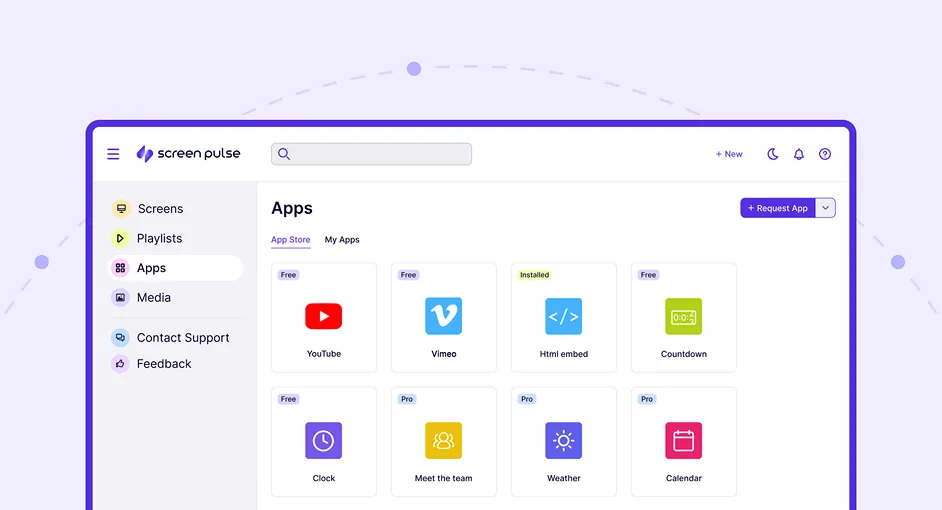
Screen Pulse apps are purpose-built screen experiences for specific types of content, data, and use cases. Instead of designing every display from scratch, you can use an app to turn information into a format designed for digital signage.
Apps support experiences such as live schedules, room displays, donor recognition, dashboards, social content, calendars, emergency alerts, and more. Some apps use content managed in Screen Pulse, while others use data from connected systems.
Browse available apps in the Screen Pulse App Store.
2. What systems does Screen Pulse integrate with?
Screen Pulse integrates with systems organizations already use to manage schedules, programs, memberships, fundraising, content, and other information. These connections allow Screen Pulse apps to use existing data rather than requiring teams to maintain the same information separately for their screens.
Integrations include platforms such as Traction Rec, Daxko, ACTIVENet, YMCA 360, Daxko GroupEx Pro, Upace, Mindbody, Google Workspace, Microsoft tools, Power BI, YouTube, Vimeo, and more.
Explore available connections on the Screen Pulse Integrations page.
3. How do Screen Pulse integrations keep content up to date?
Integrations allow Screen Pulse apps to use information from the system where your team already manages it. When connected source data changes, the corresponding screen experience can update without requiring someone to recreate and republish the content manually.
For example, changes to a class time, instructor, room, or availability in a connected scheduling system can be reflected in the relevant schedule display. This is particularly useful for information that changes frequently and would otherwise require repeated screen updates.
4. How quickly does Screen Pulse update content when information changes in a connected system?
Screen Pulse automatically updates connected screen content when information changes in the source system, helping keep schedules, programs, and other information current without manual republishing.
The time it takes for changes to appear on screen depends on the integration, the source system, and how frequently data is refreshed.
For example, when a class is rescheduled or canceled in a connected scheduling system such as Daxko GroupEx Pro, the updated information will appear on the relevant screens after the next successful data refresh.
For time-sensitive use cases, our team can explain the refresh behavior of the specific integration and help determine the best setup for your organization.
5. What types of data can I connect to Screen Pulse?
Screen Pulse can work with different types of structured content and data depending on the app and integration.
That can include information from:
- Scheduling and program systems
- Membership and operational platforms
- Fundraising and donor systems
- Spreadsheets
- Calendars
- Presentations
- Dashboards and reporting tools
- Video and media platforms
- Hosted data sources
The best connection method depends on where your data lives, how often it changes, and how you want it presented on screen.
6. Are there API limits or additional fees when syncing data across multiple locations?
Screen Pulse supports integrations across multiple locations, allowing organizations to display schedules, programs, and other connected information throughout their screen network.
API usage limits and data refresh frequency may depend on the connected system and its integration requirements. Any additional costs associated with an integration depend on the specific data source, integration, and Screen Pulse plan.
Our team can review your systems, number of locations, and expected data volume to explain the applicable requirements and costs before deployment.
7. Can Screen Pulse connect to our existing scheduling or membership system?
Yes, Screen Pulse can connect with supported scheduling, membership, and program management systems and turn their data into screen-ready experiences.
Current integrations include platforms such as Traction Rec, Daxko, ACTIVENet, YMCA 360, Daxko GroupEx Pro, Upace, and Mindbody. Depending on the source system and app, connected data can be used for class schedules, program information, room displays, availability, and other operational content.
If your organization uses another platform, talk to our team about whether an existing connection is available or a new integration can be supported.
8. Can Screen Pulse apps match our brand and design?
Yes. Screen Pulse apps can be configured to fit your organization's visual identity rather than forcing every customer to use the same presentation.
Depending on the app, customization can include elements such as colors, typography, logos, imagery, layouts, and the information shown on screen. This allows connected content to remain consistent with the rest of your brand and screen network.
9. Can I request an integration, app, or use case that isn't available yet?
Yes. If you don't see the integration, app, or use case your organization needs, talk to our team. Screen Pulse continues to expand based on real customer needs, and customer requests help shape ongoing product development.
For more specific requirements, custom development is also available. Our team can review:
- What you want to connect or accomplish
- The systems and data involved
- Whether an existing Screen Pulse capability can support it
- Whether it should be considered for the product roadmap
- Whether a custom integration or app is the better approach
10. Do Screen Pulse apps work out of the box, or do they require custom development?
Screen Pulse offers a library of ready-made apps designed for specific digital signage use cases, including programs and schedules, donor recognition, dashboards, calendars, and more.
Many apps can be configured and used without custom development. Some work with content managed directly in Screen Pulse, while others connect to supported external systems and data sources.
Depending on the app and your requirements:
- Standard Apps are included in the Screen Pulse Core plan.
- Premium Apps are available separately and may include specialized integrations or advanced capabilities.
- Custom integrations and development are available when your organization needs functionality or data connections that aren't supported by existing apps.
Our team helps identify the right apps, configure supported integrations, and determine whether any additional development is needed before deployment."
1. How do I organize and schedule content in Screen Pulse?
Screen Pulse lets you organize content into playlists and assign them to the screens where they should appear. A playlist can combine different types of content, including uploaded media, web content, and Screen Pulse apps.
You can manage playlists centrally and reuse them across different screens, making it easier to update shared content without rebuilding each screen individually.
2. Can I schedule content for specific dates and times?
Yes. Screen Pulse lets you control when content appears, so you can prepare campaigns and time-sensitive information in advance rather than publishing and removing it manually.
You can schedule content for:
- Specific dates and times
- Recurring days or time periods
- Limited-time campaigns
- Events and seasonal content
This is useful when different content needs to appear throughout the day, week, or during a defined campaign period.
3. Can I use both landscape and portrait screens?
Yes. Screen Pulse supports both landscape and portrait displays, so you can choose the orientation that works best for each space and use case.
Your screen network can include both orientations rather than requiring every display to use the same layout.
4. What file formats does Screen Pulse support?
Screen Pulse supports most standard media formats, including:
- Images: JPG, PNG, GIF, WebP
- Videos: MP4, WebM
- Documents: PDF
- Web content: HTML and URLs Specific format support may vary depending on the player device you use.
5. What are nested playlists, and when should I use them?
Nested playlists let you include one playlist inside another. They are useful when the same group of content needs to appear in several different playlists or across multiple screens.
For example, you could maintain one organization-wide campaign playlist and include it within separate playlists for different locations. When the shared playlist changes, you update it once rather than making the same change to every location's playlist.
This helps keep reusable content organized while still allowing individual screens or locations to have their own content around it.
1. What hardware do I need to use Screen Pulse?
Cloud-based digital signage does not require a specific type of TV or proprietary display. Screen Pulse works with a display and a compatible digital signage player or supported smart display. Because Screen Pulse is hardware-flexible, you can choose a setup that fits your existing equipment, locations, and deployment needs.
If you already have compatible hardware, you may be able to keep using it rather than replace your entire screen network.
2. Can I use my existing screens and media players?
Yes. Screen Pulse is designed to work with a wide range of compatible screens and players, so switching to Screen Pulse does not necessarily require new hardware.
Our team can help review what you already have, identify compatible devices, and recommend where keeping or replacing hardware makes sense.
3. Do I need a separate media player for every screen?
Not always. Some displays can run Screen Pulse through their supported operating system or Screen Pulse Web, while other setups use a separate media player connected to the display.
The right setup depends on the screen, operating system, content you want to display, and your deployment requirements. Our team can help determine the appropriate option for each location.
4. What is Amazon Signage, and why does Screen Pulse recommend it?
Amazon Signage is a purpose-built digital signage solution that Screen Pulse recommends for organizations starting fresh or adding new players to their network.
It provides 4K playback, Wi-Fi 6 connectivity, and a straightforward deployment experience, making it a practical option for standardizing new screens across locations.
Screen Pulse works with many compatible hardware options, so Amazon Signage is recommended for new deployments rather than required.
5. Can the Screen Pulse team help us choose the right hardware?
Yes. You do not need to determine the hardware setup on your own. Our team can review your requirements and existing equipment and help with:
- Evaluating compatible hardware you already have
- Selecting players for new screens
- Choosing hardware for different screen requirements
- Setup and deployment
The goal is to use what already works and add new hardware where it is actually needed.
6. Do I need a TV screen to start testing Screen Pulse?
No. You can test Screen Pulse on your laptop, desktop, smartphone, or tablet, making it easy to preview and configure content before deploying it to physical displays.
1. How quickly can I get started?
Setup time depends on the size and complexity of your deployment. A straightforward setup using compatible hardware and standard Screen Pulse features can move quickly, while projects involving multiple locations, connected systems, or custom requirements may need additional configuration.
Our team can help define the setup based on your screens, hardware, integrations, and intended use cases before deployment begins.
2. How does Screen Pulse support multi-location deployments?
You don't need to launch every screen and location at once. Screen Pulse can be introduced in stages, allowing you to start with selected screens or locations and expand from there.
Because screens and locations are managed through the same cloud-based platform, new locations can be added to the existing network while maintaining centralized control over content, playlists, apps, and scheduling.
3. What does the Screen Pulse setup and onboarding process include?
The setup process is based on what you need to get Screen Pulse working in your environment. Depending on your deployment, our team can help with:
- Reviewing existing hardware
- Selecting and configuring new players
- Setting up screens and locations
- Connecting supported systems and data sources
- Configuring apps and initial use cases
- Preparing the team that will manage Screen Pulse
For more complex requirements, we can also determine whether additional integration or custom development work is needed.
4. Does Screen Pulse provide training?
Yes. Our team provides onboarding and training so the people responsible for your screens understand how to manage Screen Pulse in their everyday work.
Training can cover tasks such as managing content, creating and scheduling playlists, organizing screens and locations, and working with the apps included in your setup.
5. What support can we expect from the Screen Pulse team?
Support doesn't end when your screens go live. Our team is available to help with both day-to-day questions and the continued development of your Screen Pulse setup.
Depending on your needs, support can include:
- Troubleshooting and technical assistance
- Hardware and player guidance
- Help with apps and integrations
- Adding screens and locations
- New use cases and configuration needs
- Custom development for specific integrations or use cases
The level and terms of ongoing support may depend on your Screen Pulse plan and any additional services included in your agreement.
6. What support and SLA coverage does Screen Pulse provide, including weekends?
Screen Pulse provides ongoing technical support to help organizations keep their digital signage networks running reliably. Our Core plan includes 24/7 professional support, with additional support options available for Enterprise customers.
Support can include:
- Troubleshooting screen and player issues
- Assistance with content playback and connectivity
- Help with apps and integrations
- Remote diagnosis of screen and player problems
- Guidance on resolving issues affecting multiple screens or locations
If a screen goes offline outside regular business hours, including weekends, you can contact our support team for assistance.
Specific response times, issue priorities, and escalation procedures are defined in your service-level agreement (SLA) and may vary depending on your plan and support arrangement.
7. Can Screen Pulse grow with our organization?
Yes. You can start with the screens, locations, and use cases you need today and expand your Screen Pulse setup over time.
You can add screens, locations, apps, integrations, and new use cases as your requirements change. If an existing capability doesn't cover a specific need, our team can evaluate whether it can be addressed through configuration, future product development, or custom development.
This also means your initial deployment does not have to anticipate every way you may eventually use your screen network.
1. Does Screen Pulse offer a free trial?
Yes. Screen Pulse offers a 14-day free trial with support from our team to help you explore the platform and its capabilities.
We start with a short demo to understand your goals, show you the most relevant features, and help you get set up for your trial.
Book a Demo to get started.
2. What is included in the Screen Pulse Core plan?
The Core plan includes the main tools you need to manage digital signage across your screens:
- Screen management
- Unlimited playlists and scheduling
- Unlimited users
- Media manager
- Content scheduling
- 35+ standard apps
- Remote screen control
- 24/7 professional support
Premium apps are available separately, so you can add them based on the experiences and integrations your organization needs.
3. How do the Core and Enterprise plans differ?
The Core plan provides the standard Screen Pulse CMS, apps, content management, scheduling, and screen management capabilities for organizations that want to build and manage their digital signage network.
Enterprise is designed for larger organizations with more advanced deployment and support requirements. It includes all Core features plus capabilities and services such as:
- Premium app integrations
- Single sign-on (SSO)
- Hardware
- Remote device management
- Emergency Alert integration
- Dedicated Customer Success Manager
- Professional design support
- Premium support
Enterprise is available with annual agreements and requires at least 50 screens.
4. How are Premium Apps billed?
Premium Apps are billed separately from the Core plan and priced individually. Once an app is licensed, it can be used across unlimited screens within your organization, rather than being purchased separately for every screen.
This allows you to add specific apps and integrations based on what your organization actually needs.
5. Is there a minimum number of screens?
Yes. The Core plan requires a minimum of 2 screens, while the Enterprise plan requires a minimum of 50 screens. You can add additional screens as your deployment grows.
6. Does Screen Pulse offer nonprofit discounts?
Yes. Screen Pulse offers special pricing for nonprofit organizations. Contact our team to discuss your organization, number of screens, and requirements and learn what nonprofit pricing is available.
1. How does Screen Pulse protect access to the platform and data?
Screen Pulse uses security measures designed to protect access to the platform, accounts, and the information used across your screen network. Access is limited to authorized users, with permissions available to control what different team members can manage.
For organizations with additional access requirements, options such as Single Sign-On (SSO) are available depending on the plan and deployment.
2. Can I control who has access to Screen Pulse?
Yes. Screen Pulse supports user roles and permissions so access can reflect how responsibilities are divided across your organization.
For example, you can give different levels of access to people responsible for organization-wide management and those working with particular locations or content. This is especially useful for organizations with multiple branches, departments, or teams sharing the same screen network.
Single Sign-On (SSO) is also available for organizations that need centralized authentication.
3. What happens if a screen loses its internet connection?
Screen Pulse can continue playing previously downloaded content if a screen temporarily loses its internet connection. Screen Pulse players cache content locally, so your screens do not need to go blank simply because connectivity is interrupted.
An internet connection is still required to receive new content, synchronize changes, and refresh information that depends on live or connected data. Once connectivity returns, the player can reconnect and receive the latest updates.
4. How can I monitor the reliability of screens across multiple locations?
Cloud-based digital signage makes it possible to monitor screens across multiple locations remotely. Screen Pulse gives teams a central view of screen and player status without requiring someone to physically check each display.
If a device goes offline or requires attention, your team can identify the affected screen and investigate the issue. This is particularly useful for larger networks where screens are distributed across branches, facilities, or geographic locations.

Ready to Put Your Screens to Work More Effectively?
Use Screen Pulse to make digital signage a practical part of your marketing, fundraising, engagement, and everyday communication.